Liongard Functionality
Liongard can be leveraged as a Screen Pop or Link to pull up the associated company in the Liongard ecosystem.
More specific information can be found on Liongard's Developer Guide.
Retrieving the API Keys
- Login to your Liongard instance, this URL differs for each system.
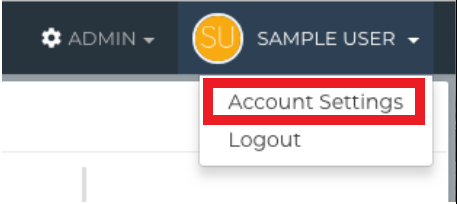
- Click on the user in the upper right corner and go to Account Settings.
- Select the Access Tokens menu on the left.
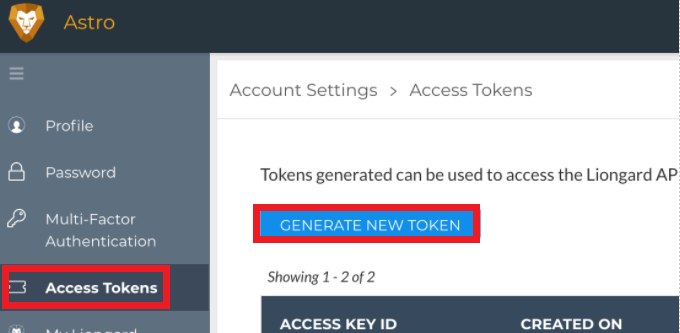
- Click Generate New Token
- Copy the Access Key ID and Access Key Secret into a separate document.
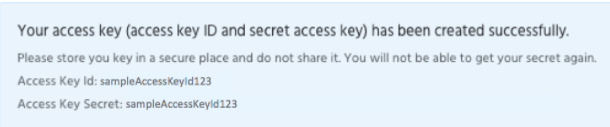
Note: The Access Key Secret will no longer be visible once you navigate away from the page.
Configuring LionGard with 1Stream
- Log into the 1Stream Admin Portal.
- Go to the Administration > Manage Organization menu in the top right.

- Scroll down to the Connected Account and CRM Settings section.
- Click on the green circle + button. The Add New CRM Platform pop-up will appear.
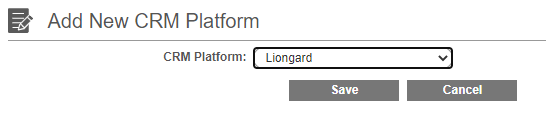
- In the CRM Platform drop-down, select Liongard.
- Click the Save button. The Edit CRM Platform pop-up will appear.
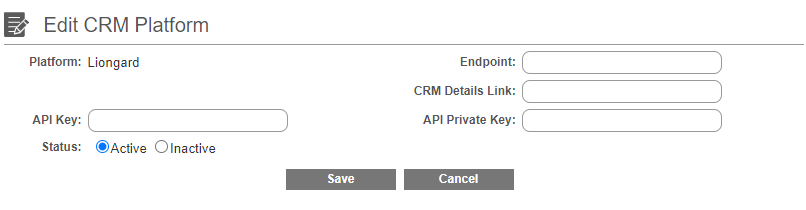
- In the API Key field, paste the Liongard Access Key ID.
- In the API Private Key field, paste the Liongard Access Key Secret.
- In the Endpoint field, input the following URL: https://xxxxxx.app.liongard.com/api/v1/
- Be sure to replace the x lettered placeholder with the name of your Liongard application.
- In the CRM Details Link field, input the following URL: https://xxxxxx.app.liongard.com/
- Be sure to replace the x lettered placeholder with the name of your Liongard application.
- Click the Save button.
Adding the Screen Pop
- Scroll down to the Screen Pop URL section.
- Click the green circled + button. The Add New Screen Pop URL pop-up will appear.
- In the Link Name field, add a name.
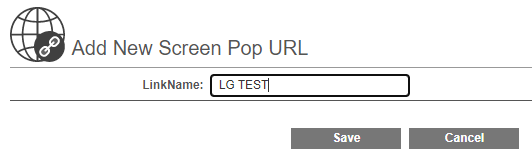
- Click the Save button. The Edit Screen Pop URL pop-up will appear.
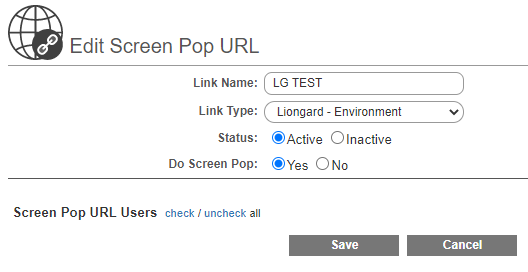
- In the Link Type drop-down, select Liongard – Environment.
- Click the Save button.