Setting up the PSA and Hudu Integration
Follow Hudu's official documentation to ensure you've properly linked your PSA with Hudu so that companies are synced over properly.
PSA/RMM – Hudu Support
Once that has been completed, you can then proceed with the steps below.
Creating the API Key for 1stream
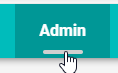
- Go to the Admin menu.
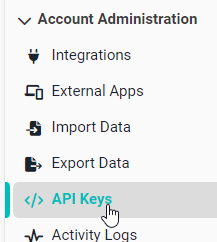
- On the left under Account Administration click on API Keys
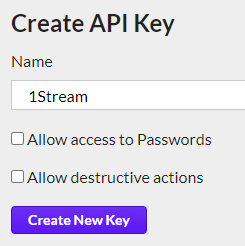
- In the Name field, type in 1stream.
- Do not check any boxes, as the integration doesn't need those permissions.
- Click the Create New Key button.
- Copy the API Key.
Setting up the 1stream Integration
- Log into the 1stream Admin Portal.
- Go to the Administration > Manage Organization menu in the top right.

- Scroll down to the Connected Accounts and CRM Settings section.
- Click on the green circled + plus button. The Add New CRM Platform pop-up will appear.
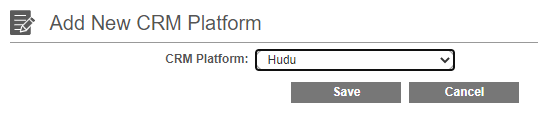
- In the CRM Platform drop-down, select Hudu.
- Click Save, the Modify Hudu Connection Settings pop-up will appear.
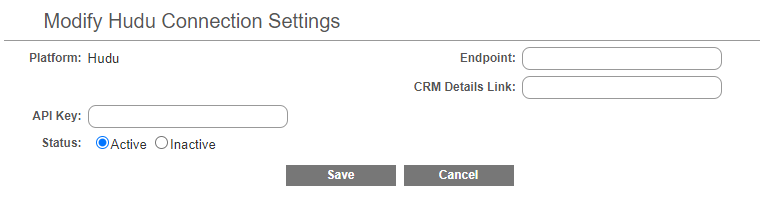
- In the API Key Field, input the API Key created in Hudu.
- In the Endpoint field, input your Hudu site URL with /api/v1/ at the end.
- E.x. https://company.huducloud.com/api/v1/
- In the CRM Details Link field, input your Hudu site URL.
- E.x. https://company.huducloud.com
- Click the Save button.
Adding the Screen Pop
-
Scroll down to the Screen Pop URLs section and click the green + in the top right.

- Click on the green circled + plus button. The Add New Screen Pop URL pop-up will appear.
- In the Link Name field, add the desired name of the Link as it will appear in the 1stream menus.
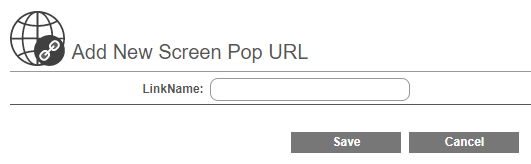
- Click the Save button. The Edit Screen Pop URL pop-up will appear.
- In the Link Type drop-down, select one of the two Hudu options for determining the pop-up screen in Hudu:
- Hudu - Company: When clicked, it will pop up the company of the associated contact in Hudu.
- Hudu - Contact: When clicked, it will pop up the associated contact in Hudu.
- For Do Screen Pop, choose what to do when a new call comes in:
- Yes: New calls will automatically open the specified Hudu link while they have the 1stream client open.
- No: Users have the ability to click the link to open the page in the 1stream client.
- Set Non Contact Pop to No, which prevents non-contacts from appearing.
- Select the Screen Pop URL users, these are the users who will have this link shown to them.
- Click the Save button.
After a refresh of the 1stream client, users should now be able to see and click on the Hudu link, or whatever you may have named it as above.