Setting the Caller ID
- Log into the 1stream Admin Portal.
- Go to the Administration > Manage Organization menu in the top right.

- Scroll down to the Phone System Enhancements section.

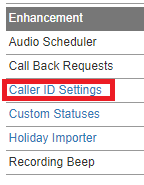
- Click on the Caller ID Settings text. The Caller ID Settings pop-up will appear.
- Click on the circled + plus sign. The Add New Caller ID Option pop-up will appear.

- In the Reference Name field, add the name of the caller ID.
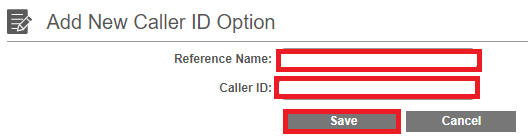
- In the Caller ID field, input the desired DID.
- Click the Save button.
Using the Caller ID
- Log into the 1stream client.
- Scroll to the Select DID drop-down.

- Select the desired DID from the drop-down.
When selected, the chosen caller ID will display for outbound calls. If a caller ID is not selected, the caller ID will reflect as shown in the phone system.