Salesforce Setup
- Login as an Admin User to Salesforce.
- Select an Existing User or create a New User.
- Note down the Username and Password of a Salesforce User with Admin permissions. These will be entered into 1stream’s CRM Settings.
- Note down the Security Token for that user. The Security Token may be required if IP Range Restrictions are not in place for the Salesforce instance.
- If there is no security token for the user, this can be reset. (Note: This will break existing Connected App integrations that use this user’s credentials.)
- Login as that User in Salesforce.
- Click View Profile icon on the Top Menu.
- Click the Settings link.
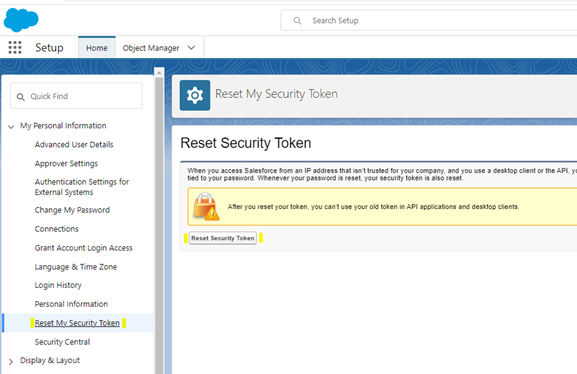
- Reset My Security Token menu item on the Side Menu.
- Click the Reset Security Code Button.
- Click Setup icon on the Top Menu.
- Click Platform Tools.
- Click App Manager.
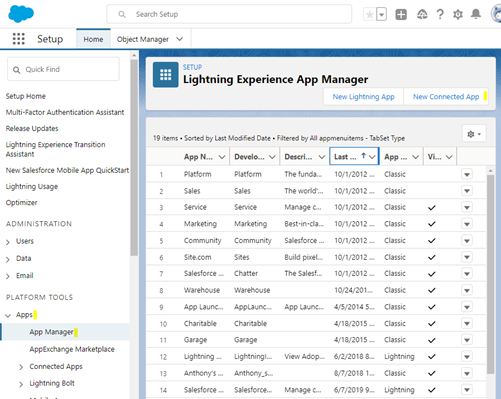
- Click the New Connected App Button. This will open the below window.
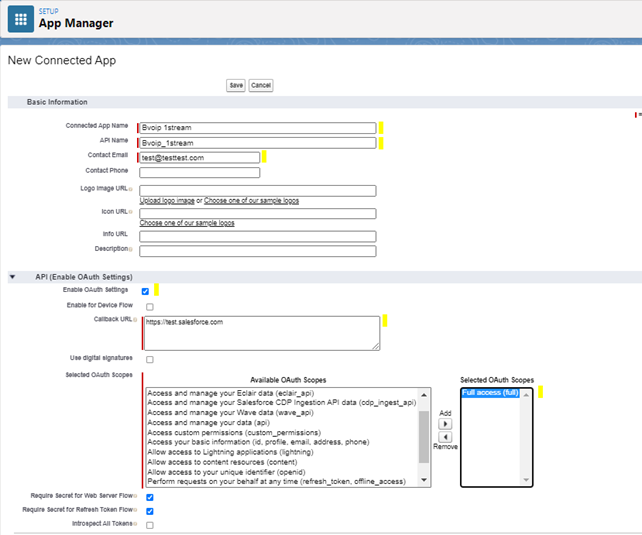
- Fill in the Required fields:
-
Connected App Name: Select an App Name similar to 1Stream for easy recognition.
-
API Name: Same as a above
-
Contact Email: The user selected above.
- Click the Enable OAuth Settings Checkbox.
- Provide a random Callback URL. This value is not used by 1stream, but a valid https value is required, such as https://test.salesforce.com.
- In Selected OAuth Scopes add Full Access to the right hand side.
- Click the Save button.
- Once the Connected App has been provisioned, copy the Consumer Key and Consumer Secret values for later use.
- Go to App Manager.
- Find the newly created App.
- Click View Option/Link.
- Click Manage the Connected App.
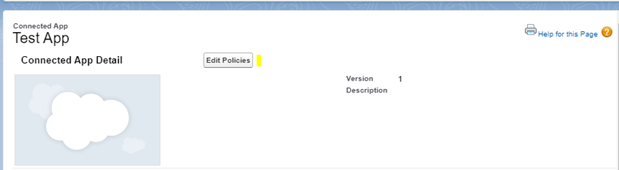
- Click the Edit Policies button at the top of the Manage Screen.
- Under the OAuth Policies section, make the selections below:
-
Permitted Users: select that All Users May Self-Authorize.
-
IP Relaxation: select Relax IP Restrictions.
1stream Setup
- Log into the 1stream Admin Portal.
- Go to the Administration > Manage Organization menu in the top right.

- Scroll down to the Connected Account and CRM Settings section.
- Click the green circled + button. The Add New CRM Platform pop-up will appear.
- In the CRM Platform drop-down, select Salesforce.
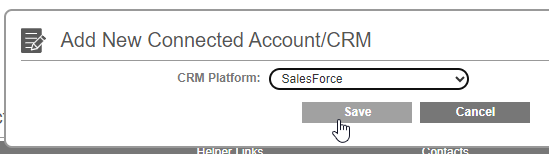
- Click the Save button. The pop-up will refresh to the Modify Salesforce Connection Settings window.
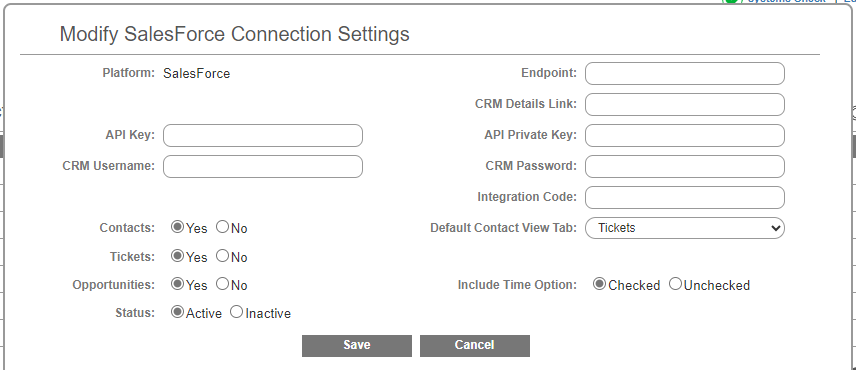
- In the Modify Salesforce Connection Settings screen, fill out the following:
-
API Key: This is the Connected App’s Consumer Key from above.
-
API Private Key: This is the Connected App’s Consumer Secret from above.
-
CRM Username: The Salesforce User’s username
-
CRM Password: The Salesforce User’s password
-
Integration Code: The Salesforce User’s Security Token, if needed. If IP Range Restrictions are not in place for your Salesforce instance, this will be required. (Please Note: If it is provided and IP Range Restrictions are in place, it will be evaluated. Depending on how your Salesforce instance is setup, this can cause issues.)
-
Endpoint: Your Salesforce instance endpoint. Usually in the form of https://na00.salesforce.com/ or https://something.my.salesforce.com/
-
CRM Details Link: Same as the Endpoint value above.
- Click the Save button.