Setting up the Security PIN in Autotask
- Log into Autotask.
- Go to the Autotask menu.
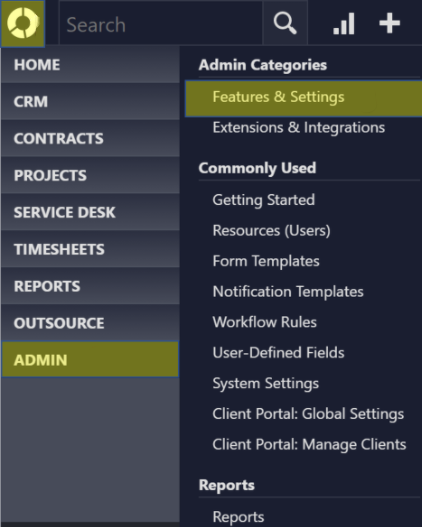
- Scroll down to Admin section.
- Go to the Features and Settings subsection.
- Scroll down to the Application-Wide (Shared) Features section.
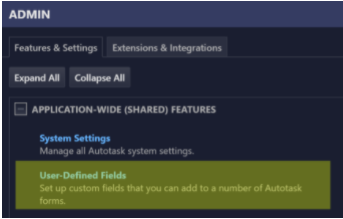
- Select the User-Defined Fields option.
- Go to the Contacts tab.
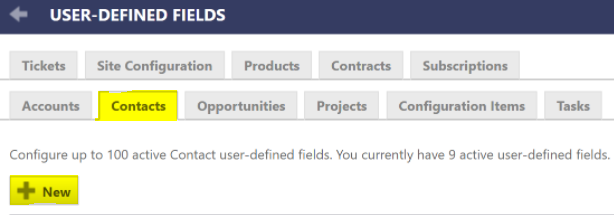
- Click on the +New button. The page will refresh to where a User Defined Field can be generated.
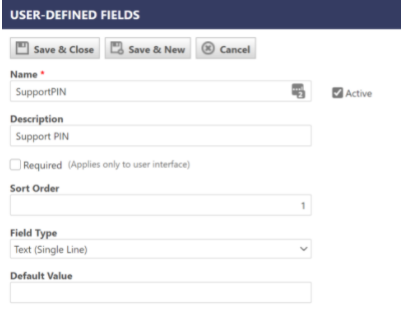
- In the Name field, enter the text SupportPIN.
- In the Description field, enter the text Support PIN.
- Leave the Required checkbox blank.
- In the Sort Order field, input the value of 1.
- Select Text (Single Line) from the Field Type drop-down.
- Leave the Default Value field with no value.
- Select the Active checkbox.
- Click the Save and Close button.
The Support PIN will be reflected under any Contact so that it can be setup for PIN Based Call Routing.