Adding Companies in 1stream
Companies can be added by end users in two different parts of the 1stream client. Companies can be added with or without a live call.
The two ways that companies can be added in the 1stream client are:
Video Warning
The above video uses the 1stream desktop application which has been deprecated. The contents still apply to the 1stream Client Chrome Extension.
Creating a New Company via Top Menu
- Log into the 1stream Application.
- Scroll upto the top menu bar.

- Click on the + plus sign button. A pop-up menu will appear.
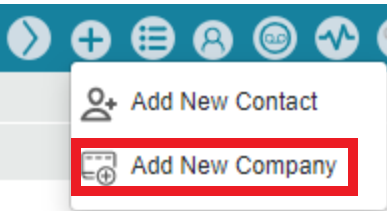
- Select the Add New Company option. The Add New Company pop-up window will appear.
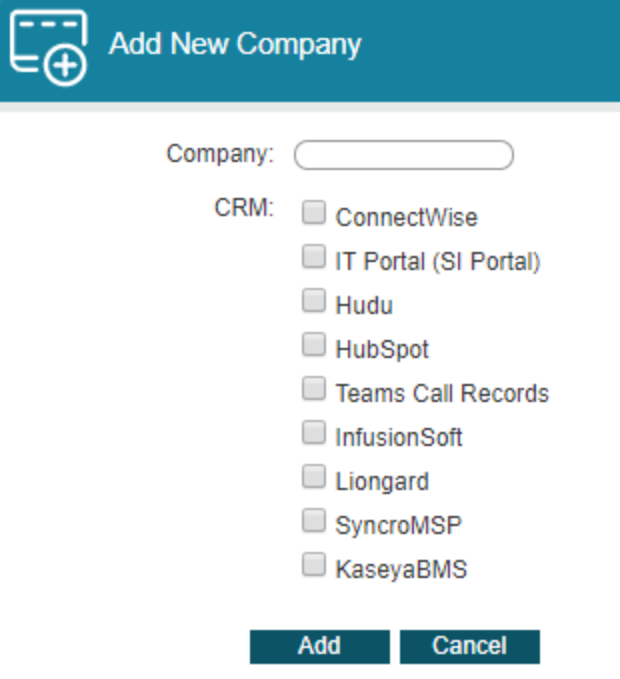
- In the Company field, add the company name.
- In the CRM section, click on the boxes to choose the CRM(s) that you wish to add the new company into.
- Click the Add button.
You will receive a green text confirming that the company was added the specified CRMs.
Creating a New Company via Contact Lookup
- Login to 1stream.
- Go to the Call History list.
- Click the Lookup text for a contact. The Lookup Contact pop-up window will appear.
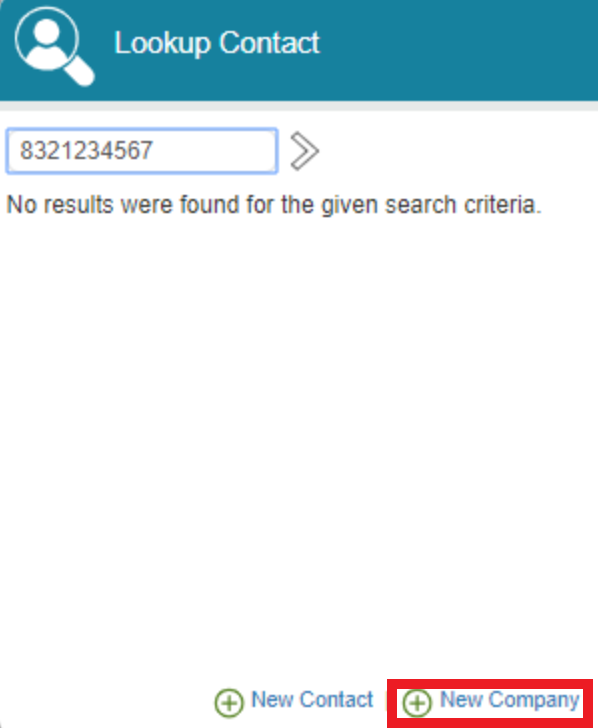
- Click on the New Company option at the bottom of the window. The Add New Company pop-up window will appear.
- In the Company field, add the Company Name.
- In the CRM section, click on the boxes to choose the CRM(s) that you wish to add the new company into.
- Click the Add button.
You will receive a green text confirming that the company was added the specified CRMs.