Manual Provisioning Notice
Grandstream phones can only be manually provisioned. Zero Touch Provisioning is not available with these devices.
Device Use Warning
Due to the temperamental nature of these phones, 1Stream does not recommend provisioning these phones with our system.
Pre-Provisioning Checkpoint
In order to manually provision a Grandstream phone, it must be factory reset and the phone template will need to be set in the 1Stream phone system.
For information on how to complete these tasks, please see below.
Accessing the Grandstream GUI
To access the web interface, you will need to retrieve the device's local IP and paste it into a web browser. The username and password should both be Admin to access the web interface.
Manually Provisioning a Grandstream Phone
- Enter the Maintenance section.
- Go to the Upgrade and Provisioning section.
- Go to the Config section.
- On the Config Upgrade via subsection, select the HTTP option.
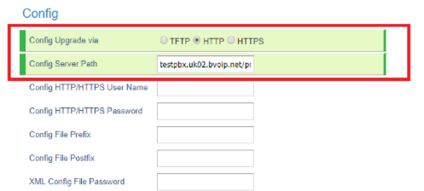
- In the Config Server Path field, ensure that the Device Provisioning URL is listed. You retrieve this from the Provisioning Link field of the Phone provisioning tab in the extension.
- This would be something like: [URL intentionally removed] key>/<MAC Address>
- Click on the Save and Apply button.
- Reboot the phone.
The phone will then reboot twice, once for a firmware check and the second to complete the provisioning process. After the reboot, the phone will be setup fully so that not just calls can be setup, but also BLF keys will function as assigned in the phone system.
Phone Still Not Provisioned?
If the phone has not provisioned with either sets of instructions, please refer to our Phone Provisioning Troubleshoot Guide.