Azure Consumption Required
This process will cause consumption-based charges to start in your Azure subscription. Consult your bill after a day or two to determine if your settings need to be adjusted, or if this is not a right fit for you.
Requirements
You must have the following in order to proceed:
- A Microsoft Azure subscription.
- Call recording enabled for whichever calls you want to analyze.
Configure Speech Services
- Visit the link below and login with your Azure account admin.
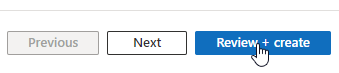
https://ms.portal.azure.com/#create/Microsoft.CognitiveServicesSpeechServices - Select your resource group, region, name, and pricing tier as you see fit, then click Review + create.
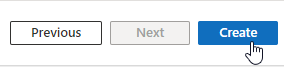
- Validate it looks correct, then click Create.
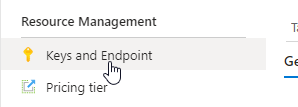
- Open your newly created service and go to Keys and Endpoint on the left.
- Copy KEY 1 and save it for later.
Setup the 1stream CRM Integration
Now that we have our Azure account setup for this, we can setup the 1stream side.
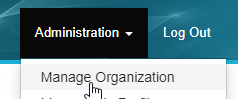
- Login to your 1stream admin portal and go to Administration > Manage Organization.
- Scroll down to the Connected Accounts and CRM Settings section, and click the green + sign in the top right.
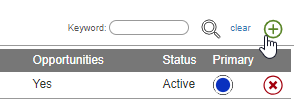
- In the Add New CRM Platform pop up window, select Azure Cognitive Services and then click Save.
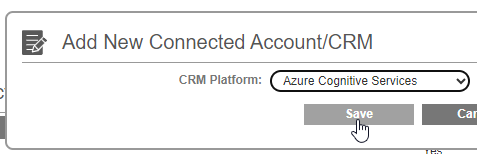
- Enter in the following details:
- Region: The region used for the Azure resources, formatted like "eastus" or "centralus2" without quotes.
- API Key: The API Key for the Speech Services endpoint from section one.
- It's recommended you enable Use Speaker Recognition to split detected speakers automatically into individual lines.
- Click Save.

Next Steps
Follow our guide below on setting up 1stream to send specific call recordings to Azure.